 SayOnce - Voice Dictation Software
We compared the best voice to text software for Windows in 2026 - offline vs cloud, one-time vs subscription, any-app vs meetings. 7 picks ranked.
The 7 best voice to text tools for Windows, reviewed
1. SayOnce: Voice Dictation Software - best for private, any-app dictation you buy once
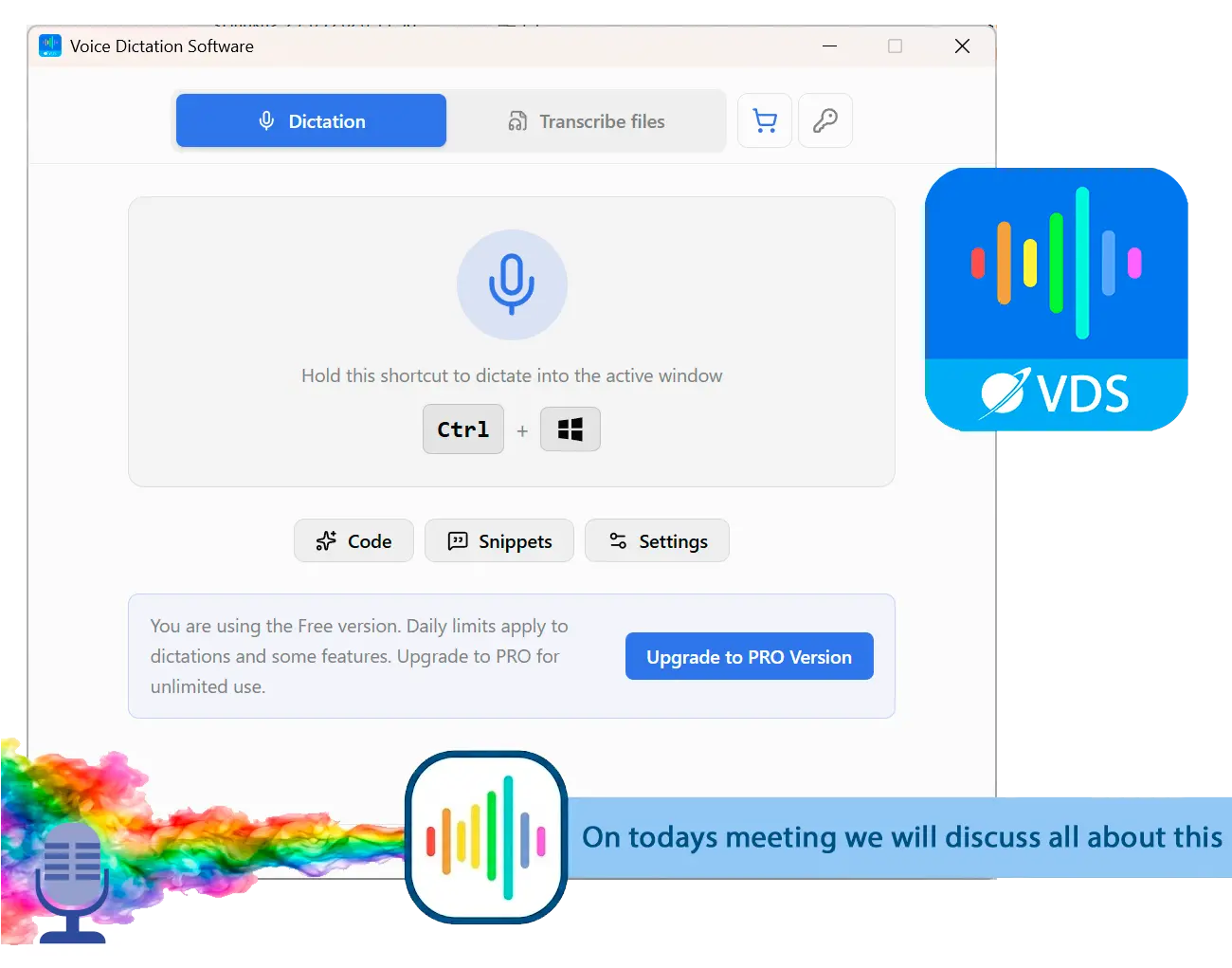
SayOnce puts a global hotkey on your keyboard, and whatever you say lands as text in the window you are already using. Email, chat box, Word document - it types wherever your cursor already sits. What sets it apart is that recognition runs locally on your PC through an on-device model, so your audio never leaves the machine. It ships with three presets (Prose, Code, and Email), a personal dictionary, and snippets, and a batch mode turns audio and video files into plain-text transcripts across 25 languages. Full disclosure, since we make it: we still ranked it against the same yardstick as everyone else, and it has real limits.Runs fully offline; your audio stays on your PC
One-time purchase, no monthly subscription
Types into any Windows app through a global hotkey
Batch-transcribes audio and video files to text
Prose, Code, and Email presets plus a personal dictionary
Windows 10/11 only; no Mac or Linux build in v1
Rules-based cleanup, no AI proofread in v1 (it will not rewrite a rambling sentence for you)
25 speech languages, not the "100+" some cloud tools advertise
Newer brand with little third-party review history yet
If keeping your voice off the cloud is the deciding factor, try SayOnce: Voice Dictation Software on Windows 10 or 11.
2. Windows Voice Typing (Win+H) - best free starting point
Windows Voice Typing is already on your PC. Press Win+H in any text field on Windows 10 or 11 and start talking, with zero install and zero cost. For a few dictated messages a day it is fine, and it is the honest baseline every paid tool is measured against. The limits arrive fast, though. It runs on Microsoft's Azure Speech service, so per Microsoft Support your PC needs an internet connection. There is no offline mode. Users on Windows forums also report it stumbles on names and specialist vocabulary, and edit commands like "scratch that" often get typed out as literal text instead of deleting anything. We put those claims through a full hands-on test in our Windows voice typing review.Free voice to text software and already built into Windows 10 and 11
Zero install; works instantly in any text field
Good enough for short, casual dictation
Requires an internet connection; audio is processed in the cloud
Accuracy drops on technical terms, proper nouns, and strong accents
Voice-edit commands are unreliable ("scratch that" is hit or miss)
No presets, custom vocabulary, or batch transcription
3. Wispr Flow - best for AI cleanup across devices
Wispr Flow is a slick, system-wide voice to text software that cleans up your speech with AI as you go, so half-formed sentences come out tidier than you said them. People who like it report jumping from typing speed to well over 100 effective words per minute, and it works across Windows and Mac. Two recurring themes show up in user threads. The first is privacy. As one reviewer put it, everything you say gets sent to the cloud to be transcribed. That is fine for quick notes but uncomfortable for client data. The second is price and reliability. Its pricing page lists $15 a month (or $12 billed annually), which some users balked at paying forever, and there was a rough patch where the community complained loudly about support and stability after a funding round.AI cleanup makes dictated text read well with little editing
Works system-wide across any app, on Windows and Mac
Strong accuracy on conversational English
Audio is sent to the cloud for processing; no true offline mode
$15/month (or $12/month billed annually) adds up over time
Free tier is capped at 2,000 words per week on desktop
Users have reported outages and shaky support during growth spurts
4. Dragon Professional - best for medical and legal specialists
Dragon Professional is the veteran of serious voice to text software, built for people who dictate documents all day and need deep customization, custom vocabulary, and voice commands. Nuance claims it dictates up to three times faster than typing with up to 99% accuracy, though that is the vendor's own figure, not an independent test. It runs offline on Windows, which many professionals need. The friction is cost and consistency. Nuance does not publish a price on its site. It is a contact-sales, one-time license, so check the vendor site for a current quote. And in medical communities, some long-time users say pricing keeps climbing and quality has felt inconsistent since Nuance's acquisition by Microsoft, with a few moving back to manual typing plus saved templates.Deep custom vocabulary and voice commands for specialist work
Runs fully offline on Windows
Strong track record in legal and medical dictation
Pricing is quote-only (contact sales); expect a high one-time cost
Windows-only; the Mac version was discontinued
Users report weaker recognition outside English
Community reports of rising prices and inconsistent quality since the Microsoft acquisition
5. Otter.ai - best for meeting transcription rather than any-app dictation
Otter.ai is excellent at one job that people often confuse with dictation, and that job is transcribing meetings. It joins your Zoom, Teams, or Meet calls and produces searchable, shareable notes with speaker labels. It is not a general any-app dictation tool. You cannot press a hotkey and dictate into a Word document with it the way you can with the others here. Users report accuracy suffers with strong accents, jargon, or people talking over each other, and speaker labels often come out as "Speaker 1 / Speaker 2." Per its pricing page, the free tier gives 300 transcription minutes a month, which longer sessions burn through quickly, and Pro runs $16.99 a month.Real-time meeting transcription with searchable, shareable notes
Native Windows desktop app plus web access
Good for capturing calls you would otherwise take notes on by hand
Not an any-app dictation tool; it is built for meetings
Accuracy drops with accents, jargon, and overlapping speakers
Free tier capped at 300 minutes per month; Pro is $16.99/month
Privacy concerns when the bot auto-joins and emails transcripts to everyone
6. WhisperTyping - best for Whisper-grade accuracy with rewrite modes
WhisperTyping is a newer desktop tool built on Whisper-family models, with a simple hotkey and AI rewrite and translate modes. Users on Capterra praise how it slots into email and messaging without switching apps, and it works in any Windows text field. It is worth being honest that its community footprint is still thin compared with Wispr Flow or Dragon, so there is less independent feedback to lean on. One recurring question in reviews is whether the free tier stays generous long-term, given the API costs behind the underlying models. The paid tiers scale up fairly quickly for full features.Whisper-family accuracy with AI rewrite and translate modes
Works in any Windows text field via hotkey
Generous free tier to start
Thin review history; a newer, less-proven product
Cloud-based processing on the AI features
Subscription tiers climb quickly ($5 to $30/month) for full features
7. Braina Pro - best voice to text software bundled with a voice assistant
Braina Pro pairs dictation with a Windows voice assistant, so you can dictate text and also fire off PC commands and simple automations by voice. Reviewers on Capterra call its accuracy solid and note it copes well with background noise and recognizes multiple speakers without training a profile. One even preferred it to Dragon for their use case. The trade-offs are that it needs an internet connection to work, it is Windows-only, and the onboarding is thin, so there is a trial-and-error learning curve. Support is described as slow, and the price sits at $99/year for one PC.Bundles dictation with a voice assistant and PC commands
Handles background noise and multiple speakers well
More affordable than a Dragon license
Needs an active internet connection to work; no offline mode
Windows-only with weak onboarding and documentation
Subscription at $99/year; support reported as slow
Dictation punctuation can disappoint despite clear speech
Which voice-to-text tools work offline, without the cloud?
Only two of the seven run fully offline. Those are SayOnce and Dragon Professional. The rest send audio to a cloud server to transcribe it, and that includes the free Win+H along with Wispr Flow, Otter, WhisperTyping, and Braina.
Offline matters more than it looks. When a tool is offline, your voice is turned into text by a model on your own PC, so nothing gets uploaded. That is why people dictating emails, client information, or medical notes keep asking for it, and why cloud-only tools keep drawing privacy complaints on Reddit and Microsoft's forums. Among the seven, SayOnce and Dragon Professional are the offline options. Dragon is powerful but gated behind quote-only pricing, which leaves SayOnce as the offline pick you can just buy. Everything else, including the free Win+H, needs an internet connection because the recognition happens on the vendor's servers, not yours.
You talk, your audio streams to a vendor's server, and the text comes back. Fast, but every word passes through someone else's machine and you have to be online.
A model on your own PC turns speech into text right there. Nothing gets uploaded, and it keeps working with no internet connection.
For client emails, medical notes, or legal text, remember that every cloud tool ships your recording off to a remote server for processing. That can collide with an NDA, patient confidentiality, or plain client trust. When the words are sensitive, an offline tool that keeps everything on your PC is the safer default.
Is Windows Voice Typing (Win+H) good enough on its own?
For a few casual messages a day, yes. Once you need long documents or offline work, or edit commands that actually fire, no. That is where a dedicated tool pays off.
Windows does have a built-in voice-to-text feature, and it costs nothing, so it is the right first stop. Press Win+H and try it. Dictate the odd message or search box and you may never need more. But Win+H has hard edges. Because it processes speech in the cloud, Microsoft Support confirms you must be online to use it, so there is no offline option. Accuracy slips on unusual names and jargon, and edit commands are inconsistent. One long-running Windows forum thread notes "scratch that" often gets typed instead of executed. On Microsoft's community hub, people ask for a better tool for exactly these reasons. There is no custom vocabulary and no batch transcription. If any of that describes your day, a dedicated Windows voice typing alternative earns its keep.
Which voice-to-text software for Windows is the most accurate?
It depends on your speech and setup, but real-world reports favor offline or Whisper-based tools for clean English, and Dragon for trained specialist vocabulary. Built-in Win+H trails on technical terms and accents.
Accuracy is not one number. Vendors love headline figures. Nuance claims up to 99% for Dragon, but those are marketing claims, not independent tests, so treat them as a claim, not a verdict. What users actually report is more useful. Built-in Win+H struggles with complex sentences, proper nouns, and strong accents, per repeated threads on Microsoft's community hub. Whisper-based tools and modern on-device models generally handle clean English well. Dragon shines when you train it on a specialist vocabulary, but users say it lags outside English. And accuracy is only half the story: a tool that transcribes perfectly but cannot reliably delete a word on command still slows you down. If precise voice-edit commands matter, test that specifically before you commit.
Accuracy also depends heavily on who is speaking, and that is not a soft claim. A peer-reviewed study measured it directly.
Your microphone matters, and so does the noise around you. Speaking pace plays a part, and overlapping voices are the hardest case of all. That is why one person's "flawless" tool is another's daily frustration.
Watch the gap between the spec sheet and daily use. Microsoft's own docs say Win+H just works in any text box, yet in practice it needs a live internet connection and stumbles on names and jargon. Nuance markets Dragon at up to 99% accuracy, but some medical users report the recognition has felt inconsistent since the Microsoft acquisition. Treat a vendor's accuracy number as a claim to test, not a promise.
One-time price vs monthly subscription: which is cheaper long-term?
A one-time purchase wins on total cost once you pass the first year or two. Subscriptions make sense if you need cross-device sync or constant AI updates and would rather pay monthly.
The math is simple. A subscription like Wispr Flow at $15/month is $180 a year, every year. Otter's Pro plan runs $16.99/month. A one-time tool like SayOnce is paid once at around $49 and then it is yours. Over three years, that is the difference between roughly $50 and well over $500.
This is exactly the frustration that shows up in user threads. People resent paying a recurring fee just to dictate a few prompts, and medical users report Dragon's pricing creeping upward. Subscriptions are not automatically bad; if you want your dictation synced across a phone and two laptops with regular AI improvements, monthly billing buys that. But if you work on one Windows PC and want to stop paying, a one-time license is the cheaper road.
Any-app dictation vs meeting transcription: are they the same?
No. Any-app dictation types your speech into whatever window you are in, whether that is an email, a doc, or a chat. Meeting transcription (Otter's job) records a call and turns the conversation into notes. Do not buy one expecting the other.
This trips people up constantly. Any-app dictation tools put a hotkey on your keyboard and drop text at your cursor, wherever that cursor happens to be. SayOnce, Win+H, Wispr Flow, WhisperTyping, and Braina all work this way. That is what most people mean by voice-to-text. You talk, and the words appear where you are typing. Meeting transcription is a different job. Otter.ai listens to a Zoom or Teams call and produces a shared, searchable transcript with speaker labels after the fact, and it does not dictate into your Word document. Turning an existing recording into text is different again; for that, see our video-to-text converter guide. Some tools also lock you to one place. Google Docs voice typing only works inside a browser and only in Docs, and Speechnotes is a browser tool, not a system-wide one. Decide which job you actually have, typing by voice or capturing meetings, before you compare features.
How to choose the right voice-to-text software for Windows
Start with the free Win+H to test the habit. Need offline privacy or a one-time price? Look at SayOnce. Want AI cleanup and cross-device sync? Wispr Flow. For specialist medical or legal work, Dragon. For meetings, Otter.
Choosing the right speech to text software for Windows is easier once you name your priority. Never dictated before? Spend a week with the free Win+H and see whether talking-to-type suits you at all; there is no reason to pay before you know. Once privacy becomes the deciding factor, pick an offline, one-time tool so your audio never leaves the PC. For AI polish across several devices, a cloud subscription like Wispr Flow fits, as long as you accept the monthly cost and cloud processing. And when your real problem is meeting notes rather than typing, Otter is the answer, not a dictation app.
To make that concrete, here is how the picks map to real people:
For professional dictation with a trained vocabulary - the medical or legal work where a word filter blocking legitimate terms is a daily headache on the built-in tool - Dragon is still the specialist route, priced accordingly. Working in healthcare? Our guide to medical dictation software digs deeper into that niche.
For a broader look at desktop dictation beyond this Windows list, see our roundup of the best dictation software. Match the tool to the job and the trade-offs sort themselves out.
One last practical note: if noisy recordings are dragging your accuracy down, cleaning the audio first with noise reduction software often helps before you transcribe. And if the source is a recorded clip rather than live speech, our roundup of the best video transcription software compares the offline and cloud tools for turning video into text.
Also considered: tools that did not make our top 7
We looked at more than seven. These are the ones we left off, with the honest reason for each. A few are browser-only, some are locked to Office, a couple do a different job altogether, and others are simply too young to judge fairly.
Naming what we cut, and why, is as useful as the shortlist itself. It shows the top seven are picks, not just the first results we found.
SayOnce - Voice Dictation Software
Sources